
EcoVadis evidence check docs › Workspace
The evidence workspace, from sign-up to the next cycle
Your company's private workspace holds the questionnaire export, every evidence file and the plan. The screens below use invented companies and data, such as Neelkosh Apparel Exports.
Sign up and sign in
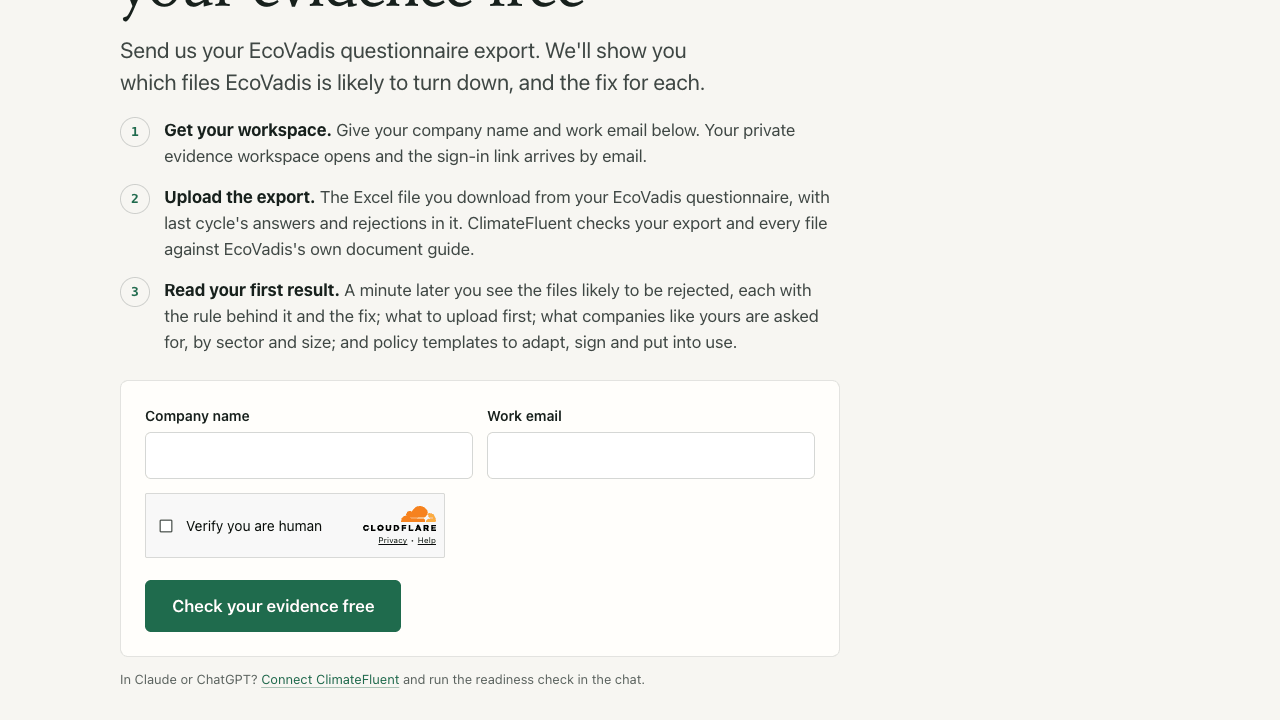
- Open the evidence check page. Type your Company name and Work email, tick the bot check, and press Check your evidence free.
- An email titled Your ClimateFluent evidence workspace arrives with a sign-in link. It works for 15 minutes and opens your company's page.
- Next time, sign in at climatefluent.com/app with the same email, and a fresh link arrives. One work email holds one company workspace.
Upload the questionnaire export
The export is the Excel workbook of your EcoVadis questionnaire. Download it from the questionnaire in your EcoVadis account; the option to export to Excel sits with the questionnaire itself. For a reassessment, take the export that still holds last cycle's answers, document names and rejection reasons: those become actions in your plan.
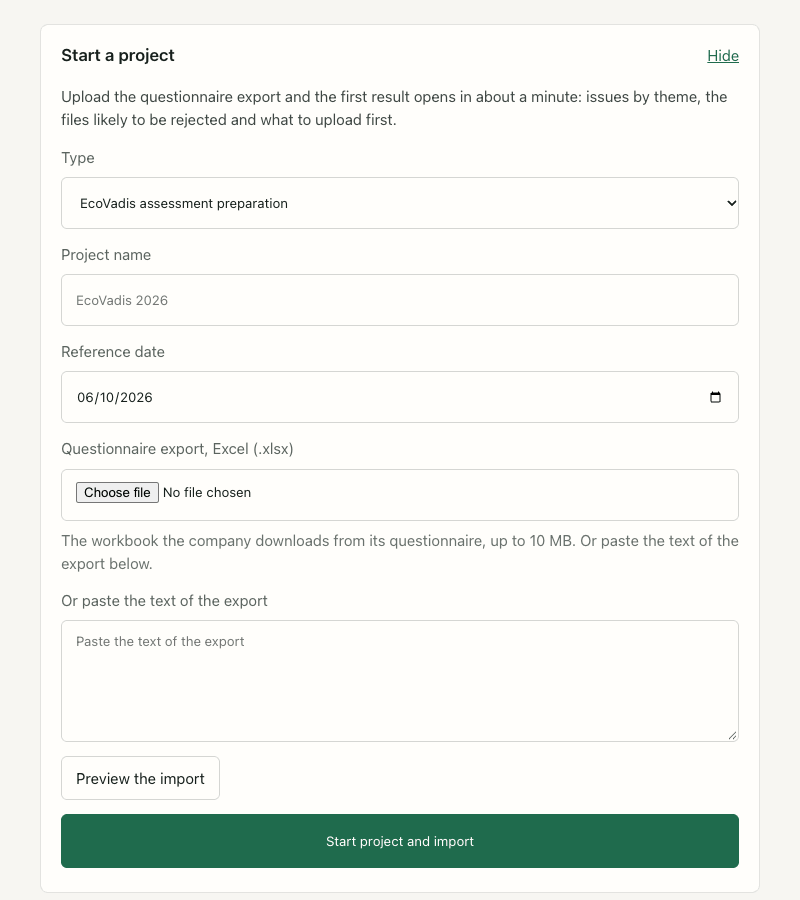
- On your company's page, open Start a project. Keep the type, name the project (for example EcoVadis 2026) and set the Reference date, the day the assessment counts from.
- Choose the file under Questionnaire export, Excel (.xlsx), up to 10 MB. If you only have the text, paste it under Or paste the text of the export.
- Press Preview the import to see how many questions, themes and document names were found, then Start project and import.
The workspace keeps the question codes, impact labels, your answers, document names and the questionnaire's wording on this project only.
Your first result
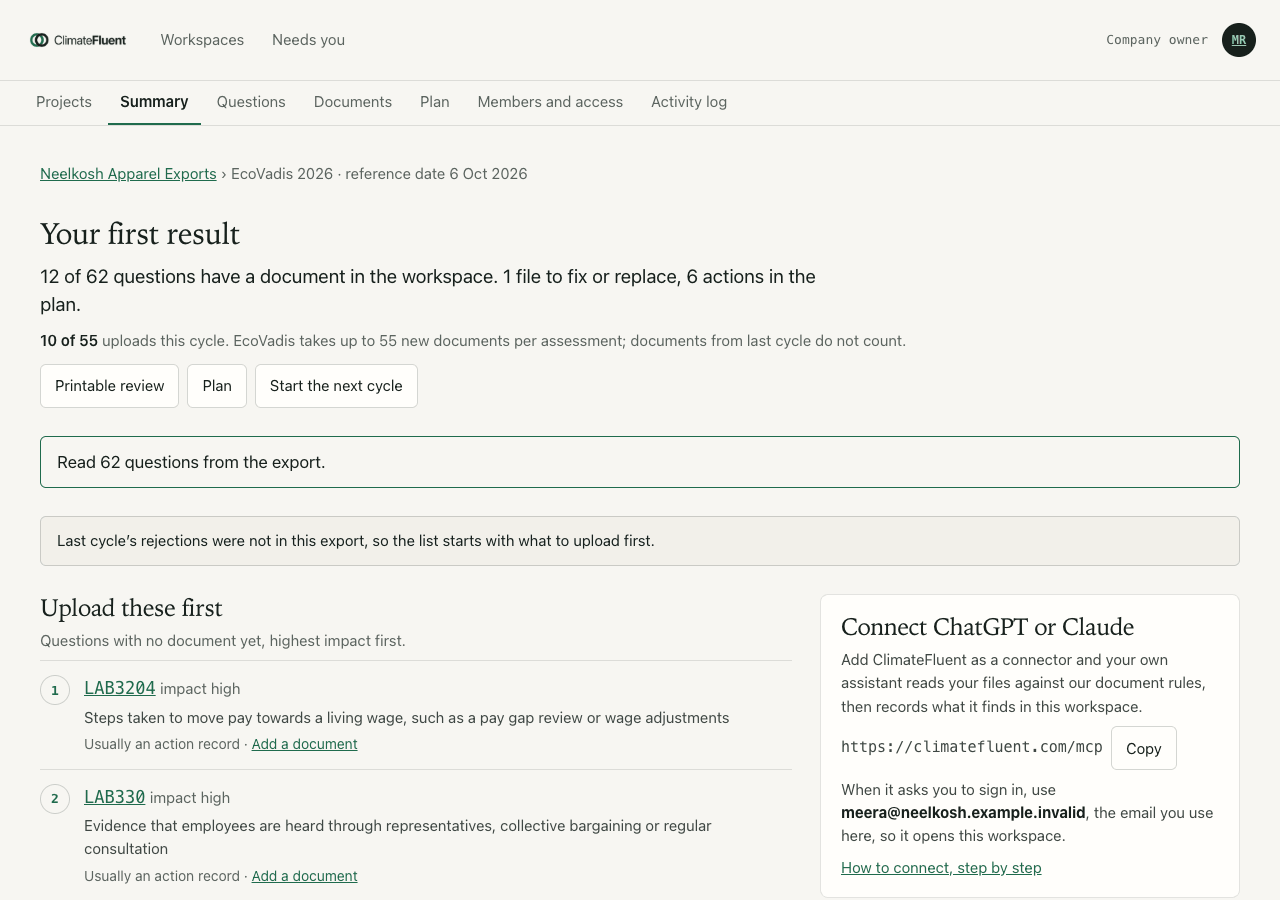
About a minute after the import, the Summary page opens as Your first result. The first line counts the questions with a document, the files to fix or replace and the actions in the plan. A green note confirms how many questions were read and how many files the previous assessment rejected or marked expired.
Start with these 5
The five actions to do first, each with its question code, the reason, the plan box (Quick wins, Strategic and so on), the effort and the owner. Actions from the previous assessment say so. When the export holds no rejections from last cycle, the page says so and starts with what to upload.
Upload these first
Questions with no document yet, highest impact first, with what the question is about and the kind of document that usually answers it. Add a document opens that question.
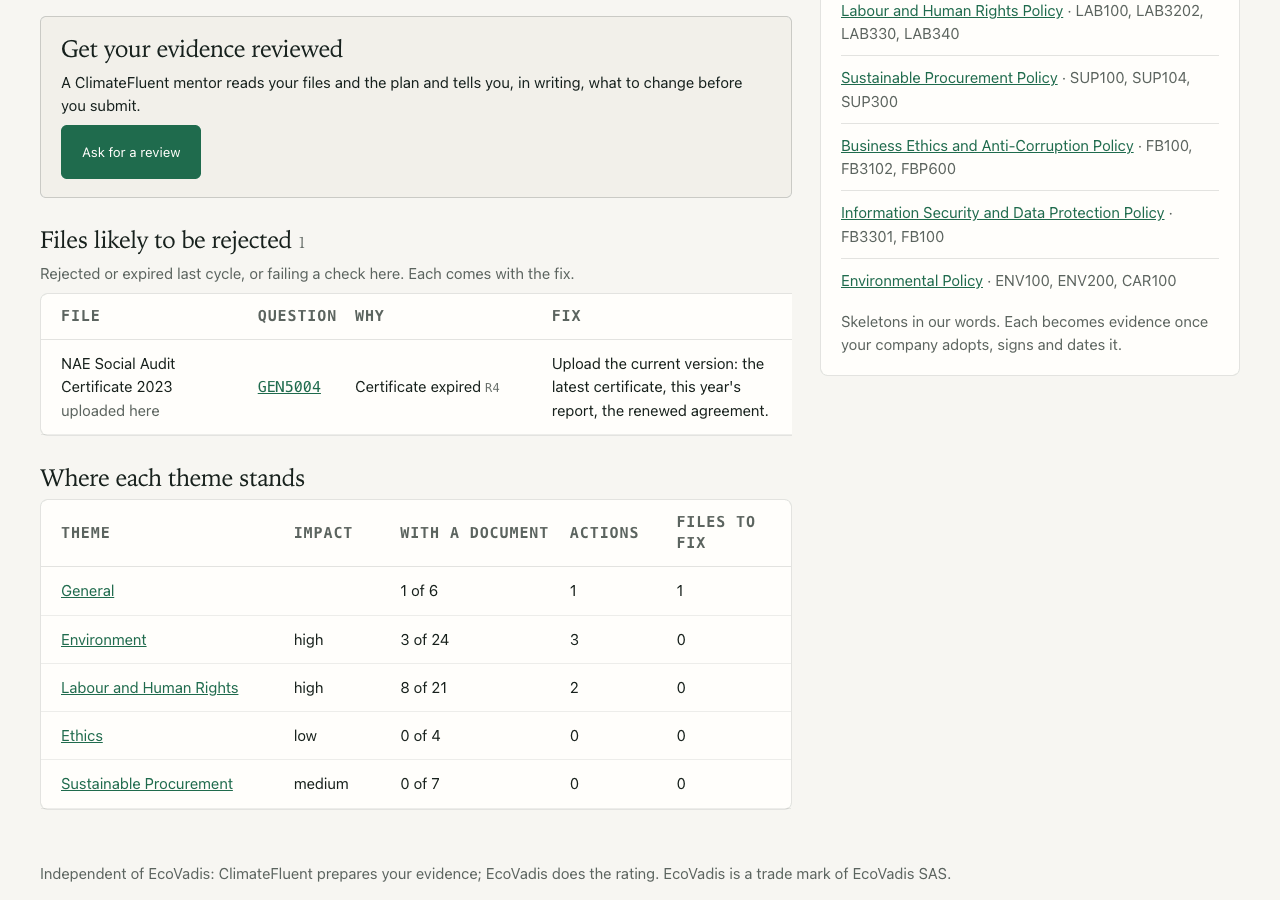
Get your evidence reviewed
The Ask for a review button. See Ask for a review. At the top of the page, Printable review, Plan and Start the next cycle sit beside the counts.
Files likely to be rejected
Every file rejected or expired last cycle, or failing a check here, in four columns: File, Question, Why with the rule id (for example R4, validity), and Fix. The first five show; the rest open under Show the other files.
Where each theme stands
One row per theme: the impact label from your export, how many questions have a document, open actions, and files to fix. Each theme name opens its questions.
Companies like you
What companies of your sector, size and country are usually asked for or have had rejected. Until enough companies share their outcomes, this comes from a seed list built from public sources, and the panel labels it that way.
Connect ChatGPT or Claude
The connector address with a copy button, and the email to sign in with. See ChatGPT or Claude.
Policy templates to adapt
Policy skeletons in our words for the gaps in your export, each with the question codes it supports. A template becomes evidence once your company adapts it, adopts it, signs and dates it, and puts it into use.
Fix a file
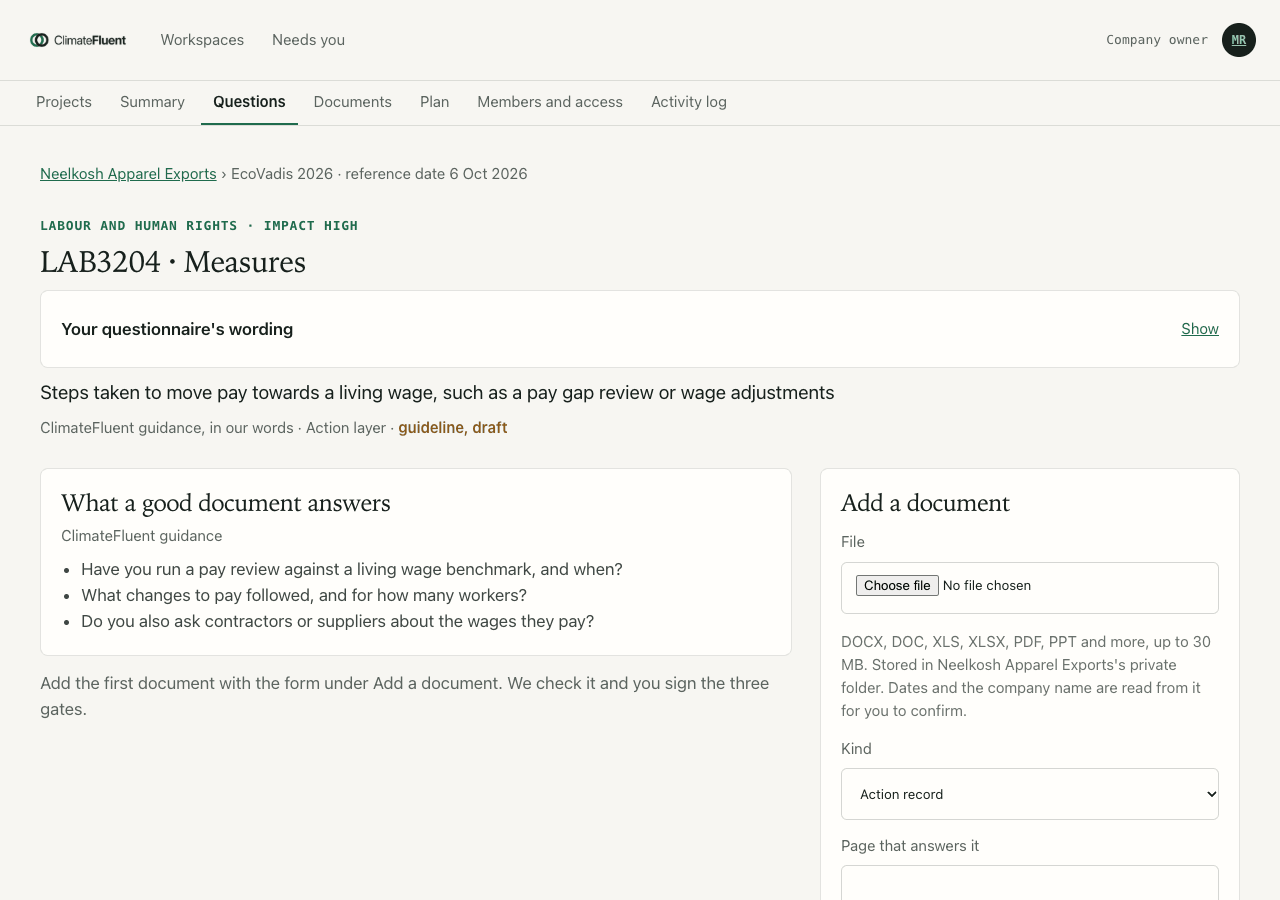
Open any question code from the Summary, the Questions tab (grouped by theme) or the plan. The page shows Your questionnaire's wording, ClimateFluent's guidance in our own words, and What a good document answers.
- Upload. Under Add a document, choose the file, pick its Kind (policy, action record, certificate, KPI report, endorsement, audit report) and, if you know it, the Page that answers it. Press Upload. Files up to 30 MB go into your company's private folder.
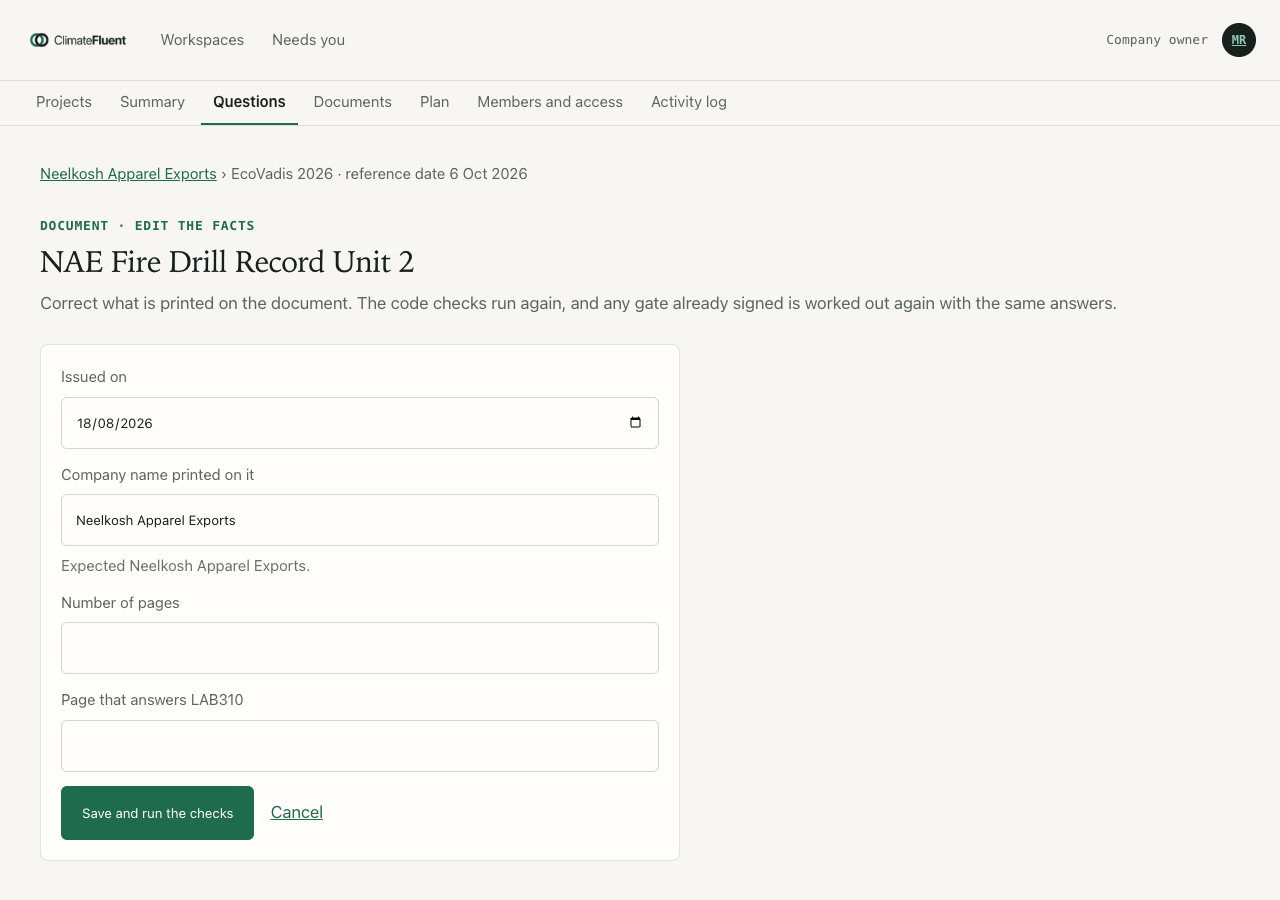
- Confirm the facts. The next page, Check what we read, shows the dates found in the file and the company name printed on it. Pick the issue date, add the expiry for a certificate or the year for a KPI report, correct anything wrong, and press Save and run the checks.
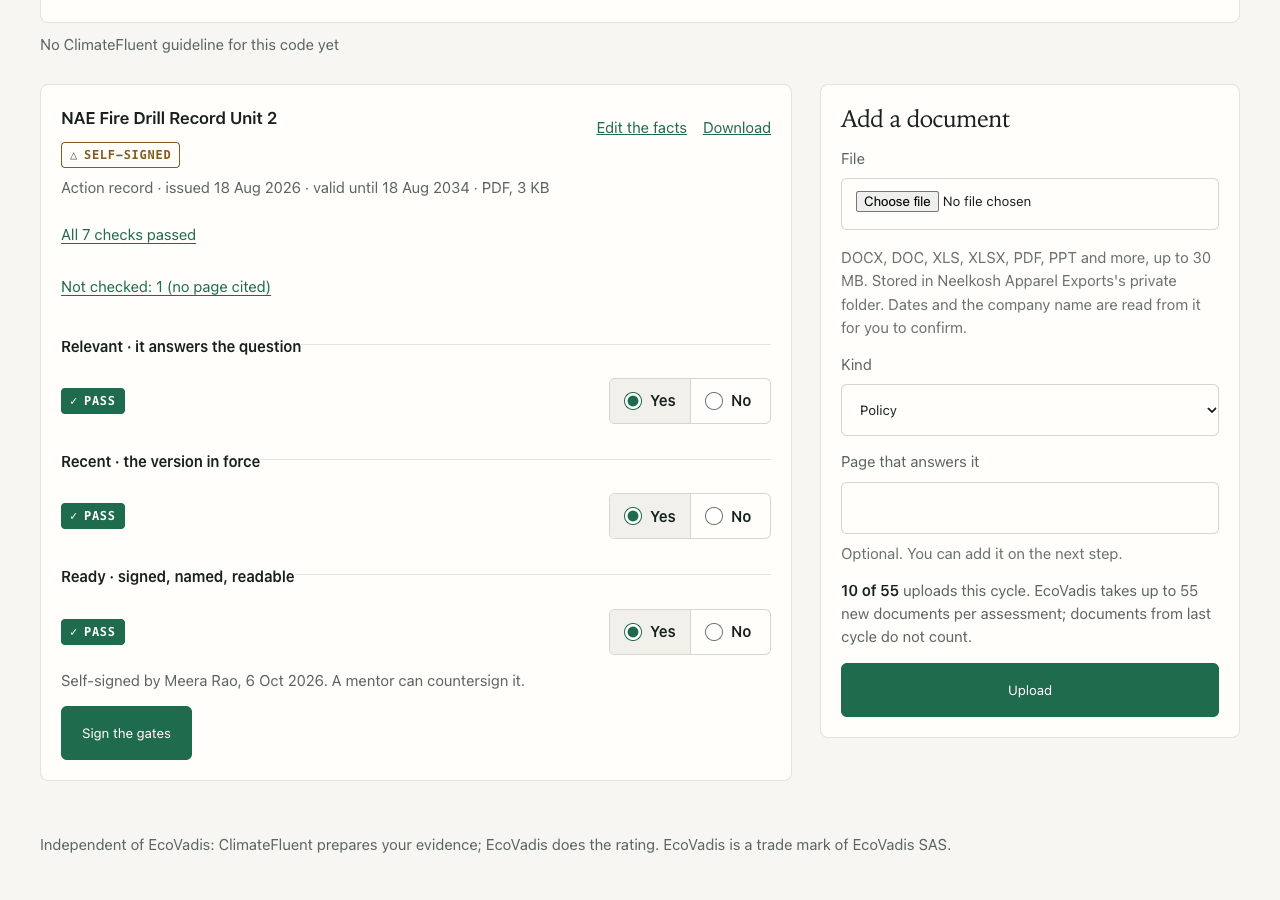
- Read the checks. The document card lists any check that needs a fix first, each with its rule id: validity window, company name, file format and size, the page cited, and the count of new documents. Passed checks fold into one line.
- Sign the three gates. Answer Yes or No for each gate and press Sign the gates. A gate answered No, or a failed check, becomes an action in the plan with its reason.
The three gates
A failed code check keeps its gate failed whatever the answer, so fix the document or add a better one and sign again. Edit the facts on the card corrects a date or name later; the checks run again with your existing answers.
Self-signed and signed by an advisor
When your company owner signs the gates, the card shows Self-signed with the name and date: your own reading of the document. When a ClimateFluent advisor countersigns the same gates, the card shows Signed by an advisor. Contributors upload files for their themes; owners and reviewers sign.
Plan and owners
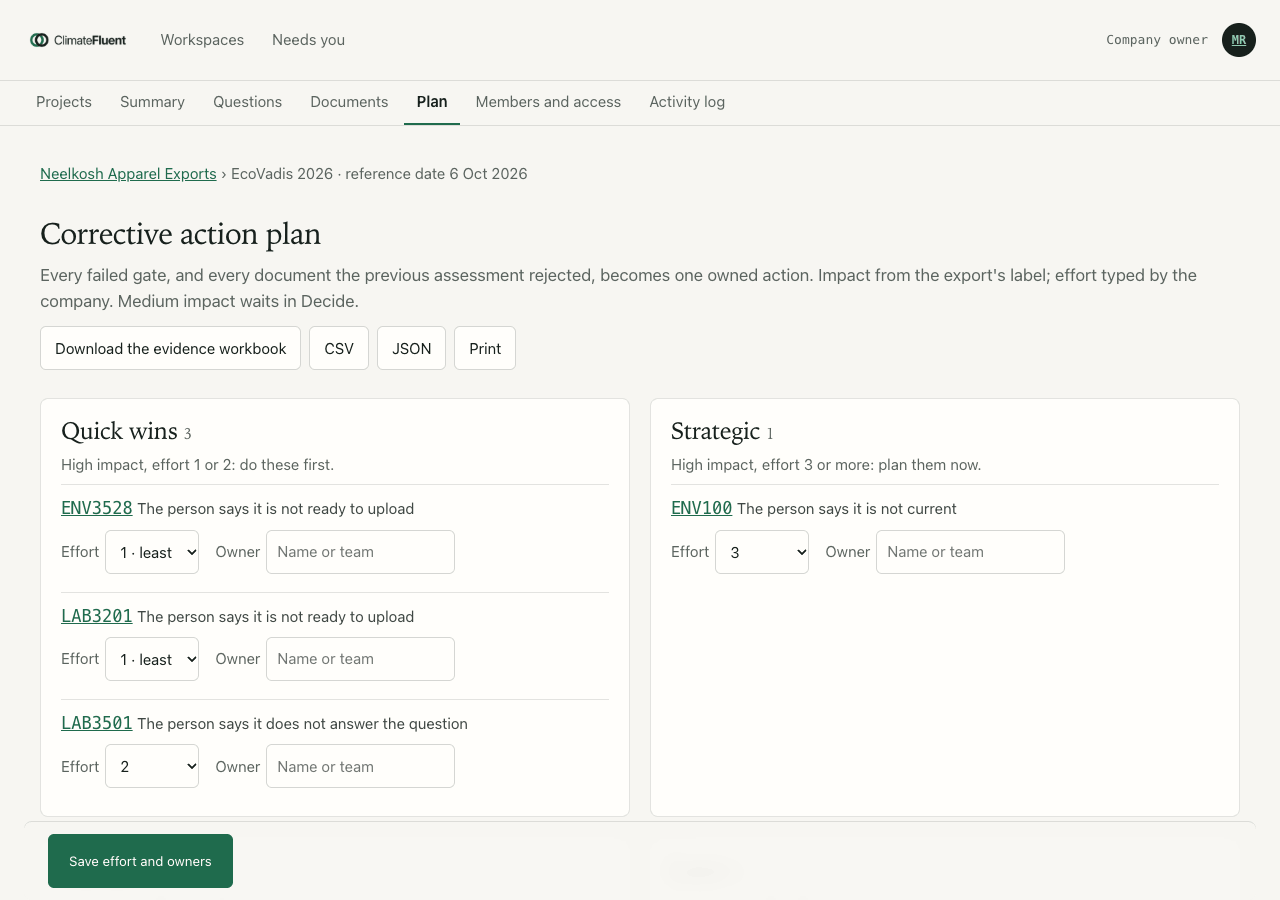
The Plan tab is your corrective action plan. Every failed gate, and every document the previous assessment rejected, becomes one action, placed by impact (from your export) and effort (which you set):
- Quick wins: high impact, effort 1 or 2. Do these first.
- Strategic: high impact, effort 3 or more. Plan them now.
- Fill-ins: low impact, effort 1 or 2.
- Later: low impact, effort 3 or more.
- Decide · medium impact: medium-impact actions, until you place them.
Set each action's effort from 1 to 5, type an Owner, and press Save effort and owners. Below the boxes, Questions with no document yet lists the codes by impact. Download the plan as CSV or JSON, or print it.
To bring colleagues in, open Members and access and invite them by email: a contributor for the themes they hold documents for, a reviewer to sign gates. The Activity log shows who uploaded, linked, signed or invited what, and when.
Ask for a review
On the Summary page, under Get your evidence reviewed, press Ask for a review. The panel then shows the date you asked, and Ask again sends a new request after you have added files.
A ClimateFluent advisor reads your files and the plan with our review agents and tells you in writing what to change before you submit. Gates the advisor countersigns show as Signed by an advisor. Printable review, at the top of the Summary, gives the review as one page to print or save as PDF: a summary, the files to fix with the guidance behind each, the plan by phase, the questions with no document yet, and a sign-off block.
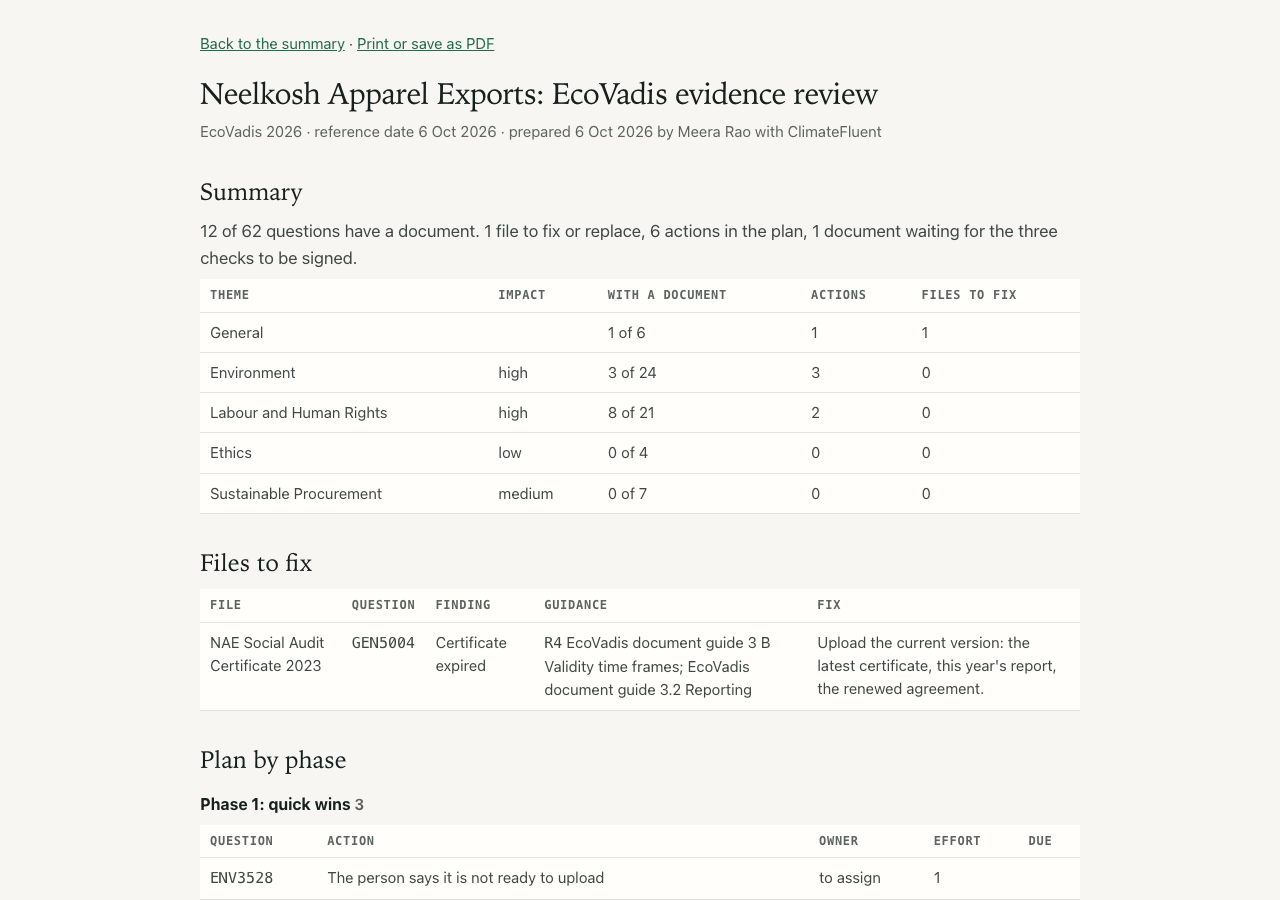
Download the evidence workbook
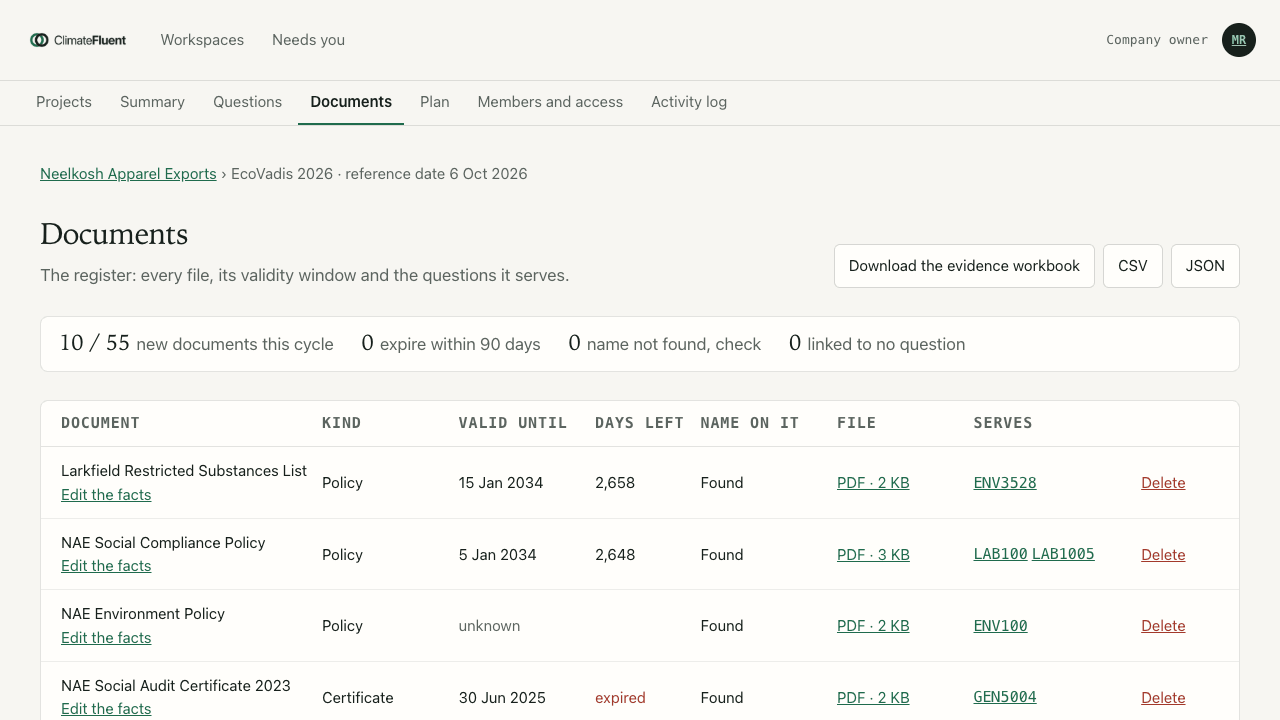
Download the evidence workbook sits on the Plan and Documents pages. It returns your questionnaire as Excel with seven columns added (S to Y): the documents held, the three gates, who signed, what is still needed, the action and its plan box. Two more sheets carry the corrective action plan and the quadrant view, so the team can work from the file you already use for EcoVadis.
The Documents page is the register: every file with its kind, valid-until date, days left, whether the company name was found, and the questions it serves. Its counters show new documents against the 55 EcoVadis takes per assessment, files expiring within 90 days, names to check and files linked to no question.
The next cycle
- Press Start the next cycle on the Summary, or open it on your company's page. Name the project and set the new Reference date; validity is measured to that date.
- Every document still in force on the new date comes with the new project, linked to the same questions, so nothing is uploaded twice. You sign the gates again.
- Import this cycle's questionnaire export. Rejections and expired files in it become actions tagged from the previous assessment, and the plan lists previous documents expired or expiring within 90 days.
- Replace reporting files first: figures older than two calendar years no longer count. Re-date reviewed policies, unlink rejected files in EcoVadis and link the replacements.
- While EcoVadis has your Corrective Action Plan tab open between assessments, upload fixes there. They count toward the next 55.
Within one cycle, Questions, then Add questions from an updated export, brings in a newer export: questions already there keep their documents and signed gates and take the new wording, and only new codes are added.